Introduction
There are two scenarios where WooCommerce store admins need to switch into a customer account. The first is support: a customer reports that their checkout isn’t working, and the fastest way to diagnose it is to see exactly what they see. The second is testing: verifying that a new shipping rule, discount, or payment gateway behaves correctly for a customer-role user before it goes live.
WordPress doesn’t include account switching as a native feature. The workaround most teams use – noting the customer’s password, logging out, logging in as them, doing the work, logging back out, and logging in again – is slow, exposes credentials, and leaves no record of what was done or who did it.
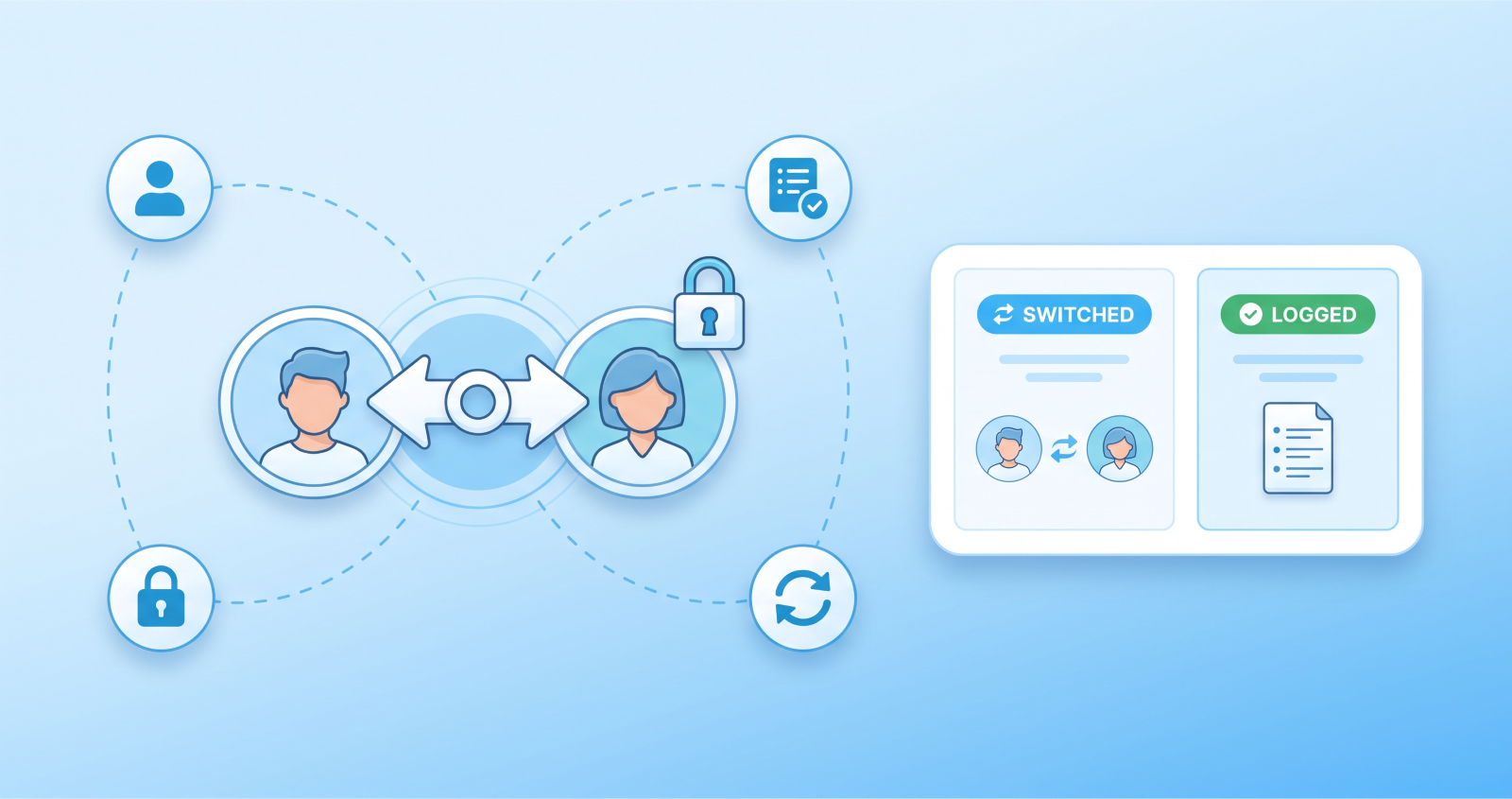
A dedicated user switching plugin handles this in a single click, with HMAC-signed session tokens to keep the switch secure, a full audit log to keep it accountable, and automatic safeguards to prevent switching into protected accounts.
This guide covers what a professional WooCommerce user switching workflow looks like and how SwitchUser by WindCodex delivers it.
Why User Switching Matters for WooCommerce Teams
For solo store owners, logging out and back in as a customer is an inconvenience. For teams – agencies managing client stores, support staff handling customer issues, developers testing checkout flows – it’s a recurring operational problem.
Support accuracy. When a customer reports a problem, the most reliable diagnosis is seeing what they see. Shipping methods that don’t appear, payment gateways that error, discount codes that don’t apply – all of these can look fine in the admin view while behaving incorrectly for a specific customer role or account. Switching into the customer’s account and reproducing the issue directly eliminates guesswork.
Testing without friction. Adding a new product variation, updating a shipping zone, or changing a tax rule all need to be tested from the customer’s perspective before going live. Without user switching, this means maintaining separate test accounts, logging in and out repeatedly, and hoping the test account has the same profile attributes as your actual customers.
Security and accountability. Any operation performed in a customer’s account should be logged. Which admin switched to which customer, when, from which IP address – this is the audit trail that matters for security reviews, compliance, and internal accountability. Without it, there’s no record of what happened inside a customer account if something goes wrong.
What SwitchUser Adds to WooCommerce
SwitchUser adds secure, one-click user switching to WordPress and WooCommerce with a comprehensive audit trail and role-based access controls. Here’s what it covers.
One-click switching from anywhere
SwitchUser adds switch buttons in three places in WordPress admin:
- The Users list – a Switch button next to every user row
- The User profile screen – switch directly from a customer’s profile
- The WooCommerce order details screen – switch to the customer on an order with one click, directly from the order context
The WooCommerce order context switch is particularly useful for support: a customer emails about order #4521, you open the order, switch to their account, and immediately see their cart, checkout, and account experience – all without leaving the order screen or searching for their user account separately.
HMAC-signed session security
SwitchUser uses HMAC-signed cookie tokens and nonce protection for every switch action. This ensures the session is cryptographically tied to the switching admin – it can’t be forged, replicated, or hijacked. All switch actions are safe to perform on live sites.
Visible switch indicator on the frontend
When an admin switches into a customer account and visits the store frontend, a visible “viewing as [customer name]” indicator bar appears on every page. This prevents accidental actions – placing a test order, submitting a review, or changing account details – while in a switched session. Only the logged-in administrator can see this bar; it’s invisible to the customer and to other visitors.
Configure the indicator bar colour and message under Settings → SwitchUser → Frontend Bar.
Switch-back controls
Returning to the original admin account is available via two routes: a floating quick-switch button that appears in the corner of every page during a switched session, and the admin bar link that reads “Switch back to [admin name].” Either returns the session to the original account securely without requiring a separate login.
Automatic idle timeout
If an admin switches into a customer account and leaves it inactive, SwitchUser can automatically switch back to the original admin account after a configurable period of inactivity. Configure this under Settings → SwitchUser → Security → Idle Timeout. This prevents a session from being left open in a switched state if an admin steps away from their computer.
Role Permissions and Admin Protection
The most important security configuration in SwitchUser is controlling who can switch and which accounts are protected from being switched into.
Role hierarchy enforcement
By default, SwitchUser enforces WordPress role hierarchy: users can only switch to accounts with equal or lower permissions than their own. An editor cannot switch to an administrator. A shop manager cannot switch to a super admin. This is enforced at the plugin level – no additional configuration required.
Locked users
In SwitchUser Pro, specific user accounts can be locked from being switched into entirely. Lock your founder account, your main payment processor account, or any other account that should never be accessed via user switching. Locked accounts don’t appear as switch targets for any user, regardless of role permissions.
Configure locked users under Settings → SwitchUser → Access Control → Locked Users.
Per-user switch grants
Pro also includes per-user switch grants – the ability to grant specific non-admin users the ability to switch into specific accounts, without granting them broad switching permissions across all users. This is useful for support team members who need to access a specific set of customer accounts but shouldn’t have switching access to the full user base.
IP allowlist for switching
For stores where switching should only ever happen from known office or team IP addresses, SwitchUser Pro includes an IP allowlist for switch actions. Switching attempts from IPs outside the allowlist are blocked, regardless of the user’s role.
Configure the IP allowlist under Settings → SwitchUser → Security → IP Allowlist.
Re-authentication for privileged targets
When switching to a high-privilege account, SwitchUser Pro can require re-authentication – the switching admin must re-enter their password before the switch is permitted. This adds a security checkpoint for switches that could have significant consequences if performed accidentally or by an unauthorised party.
The Audit Log
SwitchUser’s audit log is the accountability layer that makes user switching safe to use in professional environments. Every switch action is recorded with:
- Which admin performed the switch
- Which account was switched to
- The timestamp of the switch
- The IP address the switch was performed from
- The browser used
The audit log is accessible under WooCommerce → SwitchUser → Audit Log. Logs can be exported as CSV or JSON for security reviews, compliance reporting, or external log management. Configure how long logs are retained under Settings → SwitchUser → Logs → Log Retention.
In SwitchUser Pro, per-switch email notifications alert a designated address every time a switch is performed – useful for stores where any account access should trigger an immediate notification to a security officer or senior team member. A weekly activity digest summarises all switch activity from the previous seven days for review.
Scheduled Switching Windows (Pro)
For environments where user switching should only be permitted during specific hours – support hours, for example – SwitchUser Pro includes scheduled switching windows. Outside the configured window, switch buttons are hidden and switching attempts are blocked, even for users with the appropriate role permissions.
This is a practical security control for stores with support teams operating in shifts, where after-hours account access should be prevented as a policy.
Multisite Support
SwitchUser is fully compatible with WordPress Multisite networks. Switch actions, audit logs, and role permissions all function correctly across network sites. This is particularly relevant for agencies running client sites on a multisite install – support staff can switch to customer accounts on any network site with the same one-click workflow.
Frequently Asked Questions
Is SwitchUser safe to use on live production sites?
Yes. SwitchUser uses HMAC-signed session cookies and nonce protection to ensure all switch actions are cryptographically secure. Switches cannot be forged, replicated, or persisted by anyone other than the original switching admin.
Can I switch to a customer directly from their order in WooCommerce?
Yes. SwitchUser adds a quick-switch button directly to the WooCommerce order details screen, so you can switch to the customer on any order with one click without leaving the order context.
What happens to the audit log over time – does it grow indefinitely?
Audit log retention is configurable under Settings → SwitchUser → Logs → Log Retention. Set a retention period in days after which older log entries are automatically pruned. Logs can also be exported as CSV or JSON at any time.
Can I prevent switching to administrator accounts?
Yes. Role hierarchy enforcement is on by default – users can only switch to accounts with lower permissions than their own. In Pro, you can additionally lock specific individual accounts from being switch targets entirely, regardless of role.
Does SwitchUser work on WordPress Multisite?
Yes. SwitchUser is fully compatible with WordPress Multisite networks, with switch actions and audit logs functioning correctly across all network sites.
Can non-admin users be granted switching access?
Yes, with SwitchUser Pro. Per-user switch grants let you give specific non-admin users the ability to switch into specific accounts, without granting them broad access across the full user base.
Wrapping Up
User switching is an operational necessity for WooCommerce support teams, agencies, and developers – but it needs to be done securely and with full accountability. Logging out and back in as a customer is slow, exposes credentials, and leaves no audit trail.
SwitchUser replaces that workflow with one-click switching from the users list, user profiles, and WooCommerce orders; HMAC-signed session security; a comprehensive audit log with CSV export; role hierarchy enforcement and admin account protection; and a visible frontend indicator to prevent accidental actions in a switched session.
The free version covers one-click switching, role enforcement, audit logs, and the frontend switch bar. Pro adds per-user switch grants, IP allowlists, locked accounts, idle timeout, scheduled windows, re-authentication for privileged targets, email notifications, and a weekly activity digest.
Install SwitchUser free from WordPress.org →
Explore SwitchUser Pro →