
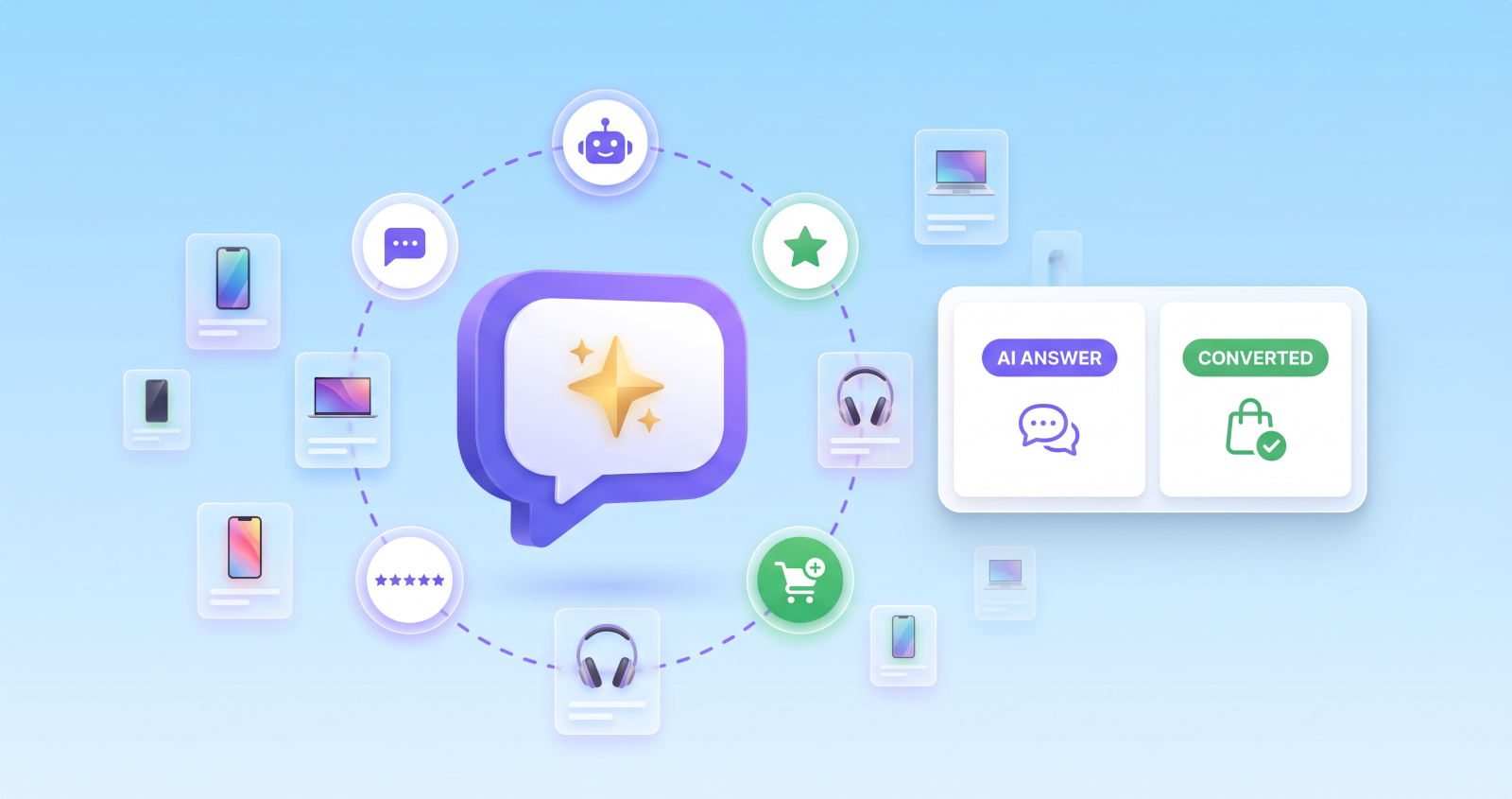
Most WooCommerce stores lose sales the same way: a shopper has a question at 11pm, nobody is there to answer it, and they leave. An AI chatbot fixes that by answering from your real product, stock and policy data, any time of day.
This guide shows you how to add an AI chatbot to WooCommerce in four steps: choosing the right type of chatbot, installing and connecting it, training it on your products and policies, then testing and measuring it. Setup takes about 15 minutes. We use ShopChat, our AI chatbot for WooCommerce, as the worked example, but the checklist applies to any tool you choose.
What an AI chatbot should do for a store
Before you install anything, be clear about the job. A useful WooCommerce chatbot should:
- Answer product questions from live data – “Is this in XL, and can it arrive before Friday?” needs current stock and shipping rules, not a script.
- Recommend and upsell in context – suggest the matching item once a shopper has shown interest, not as a random popup.
- Handle order status and returns – the two most common support questions in most stores.
- Hand over to a human when a question is too complex or the customer asks for a person.
- Show what it’s worth – which conversations led to orders and how much revenue they influenced.
Step 1: Choose a chatbot
There are two kinds of chatbot for WooCommerce, and the difference matters.
Rule-based (flow) chatbots make the visitor click through a menu of pre-written options. They work for very simple, predictable questions and fail the moment a customer asks anything outside the script – which is where most valuable sales conversations happen. “Something like this but in green and under £50” isn’t a flow.
AI chatbots understand the question in plain language and answer it from your store’s data. Use this checklist to compare them:
- Live catalogue reading, not a cached index. A cached index goes stale as soon as stock or prices change. A confident “yes, it’s in stock” for an item that sold out this morning costs you the sale and the customer’s trust.
- Handles mixed questions. A shopper may ask about a product, its return policy and a discount in one message. The answer should cover all three.
- Order status and returns for logged-in customers.
- Human handoff by email transcript or a link to your live chat or helpdesk.
- Analytics showing influenced orders and revenue.
- Multilingual replies if you sell across countries.
- Scales to large catalogues without slow replies or runaway API costs.
- Runs inside WordPress admin, so you’re not managing yet another external dashboard.
ShopChat was built against this list: it reads your WooCommerce product database live on every question and routes mixed questions to specialist agents (product search, recommendations, returns and policy, knowledge base), then merges the answers into one reply.
Step 2: Install and connect
- Go to Plugins → Add New, search for ShopChat by WindCodex (or upload the zip from your account), then click Activate.
- Go to WooCommerce → ShopChat → Settings → AI Configuration.
- Choose your AI provider – OpenAI, Anthropic (Claude) or Google Gemini – paste your API key and pick a model.
- Under General Settings, write the greeting customers see when the chat opens. Replace the default “Hi! How can I help you today?” with something in your brand’s voice.
- Set the widget position (left or right), your brand colour (hex) and, optionally, a custom launcher icon.
Step 3: Train it on your products and policies
An AI chatbot is only as good as the information and instructions you give it.
- Set the brand voice. Under AI Configuration → Brand Voice, add one short instruction, such as “Be warm, friendly and concise” or “Be factual and direct”. It shapes every reply.
- Turn on the capabilities you need. Under Capabilities, enable Product Search and Upsells, Returns (enter your return window in days), and optionally Image Input (needs a vision-capable model) and Voice Input.
- Make your return policy clear. The bot checks the return window and explains your policy, so make sure the window you set matches your published Refund policy.
- Set up human handoff. Under Advanced → Human Handoff, add the email address that should receive conversation transcripts, an optional link to your live chat or helpdesk (for example Zendesk or Intercom), and a button label such as “Talk to our team”. If the AI provider is ever unavailable, ShopChat shows a fallback message and triggers the handoff.
- Large catalogue? With 10,000 or more products, enable Category Scope under AI Configuration so the assistant searches only relevant categories. It pre-filters products with vector search, keeping replies fast and API costs in proportion.
- Selling in several languages? Enable General Settings → Multilingual and the bot replies in the shopper’s browser language.
Step 4: Test and measure
Test before you announce it. Open your store in a private window and ask the questions real customers ask:
- “Do you have in [size/colour]?” – check the stock answer is right.
- “Something like this but cheaper?” – check the recommendations make sense.
- “Can I return this after 20 days?” – check it applies your real return window.
- “Where is my order?” while logged in as a test customer – check it finds the order.
- “I want to talk to a person” – check the handoff email arrives.
Decide where it appears. Under General Settings you can hide the widget on cart and checkout pages if you’d rather not distract shoppers while they pay.
Add proactive nudges carefully. Under Advanced → Proactive Nudges, set an idle or exit-intent message (for example, “Questions about sizing? Ask me”). Start with a longer idle timeout and adjust once you see the results.
Measure. Check WooCommerce → ShopChat → Analytics weekly for influenced orders, influenced revenue, total conversations and top recommended products. Read a handful of real conversations too – they show exactly which questions customers have and where your product pages need better information.
Ready for the hands-on part? See how to set up an AI shop assistant with ShopChat in about 10 minutes.
Common mistakes to avoid
- Skipping the handoff. A chatbot with no route to a human leaves frustrated customers at a dead end.
- A return window in the bot that doesn’t match your policy page. Customers will screenshot it.
- Aggressive nudges. A chat that pops open after 3 seconds annoys more people than it helps.
- Never reading the conversations. They’re free customer research.
- Thin product data. The bot answers from your descriptions and attributes; if sizes, materials or shipping times are missing, it can’t answer well.
Frequently asked questions
How long does it take to add an AI chatbot to WooCommerce?
About 15 minutes for a basic setup: install, add an API key, set the greeting and turn on the capabilities you need. Allow another 30 minutes for testing.
Does it work with very large product catalogues?
Yes. Enable Category Scope so the assistant searches only relevant categories; vector search pre-filters products to keep replies fast and API costs low.
Can customers check their order status in the chat?
Yes, when they’re logged in. The assistant reads their recent WooCommerce orders and answers questions like “where is my order #1234?”
What happens if the AI provider goes down?
ShopChat shows a fallback message and triggers the human handoff if you’ve set one up, so customers always have a way to reach you.
Is conversation history stored?
Conversation logs are stored in your WooCommerce database for analytics and debugging, and can be cleared under WooCommerce → ShopChat → Analytics → Clear Logs.
Add an AI chatbot to your store today
ShopChat answers product, order and returns questions 24/7 from your live WooCommerce catalogue, and hands complex cases to your team.
14-Day Money-Back Guarantee · HPOS Compatible · Priority Support