
Introduction
You’ve just checked your WooCommerce orders and spotted a pattern: customers from countries you can’t ship to keep placing orders. Or you’re selling a digital product with regional licensing restrictions and need to ensure only authorised territories can buy. Maybe you’re dealing with a spike in chargebacks from a handful of high-risk regions and need to act fast.
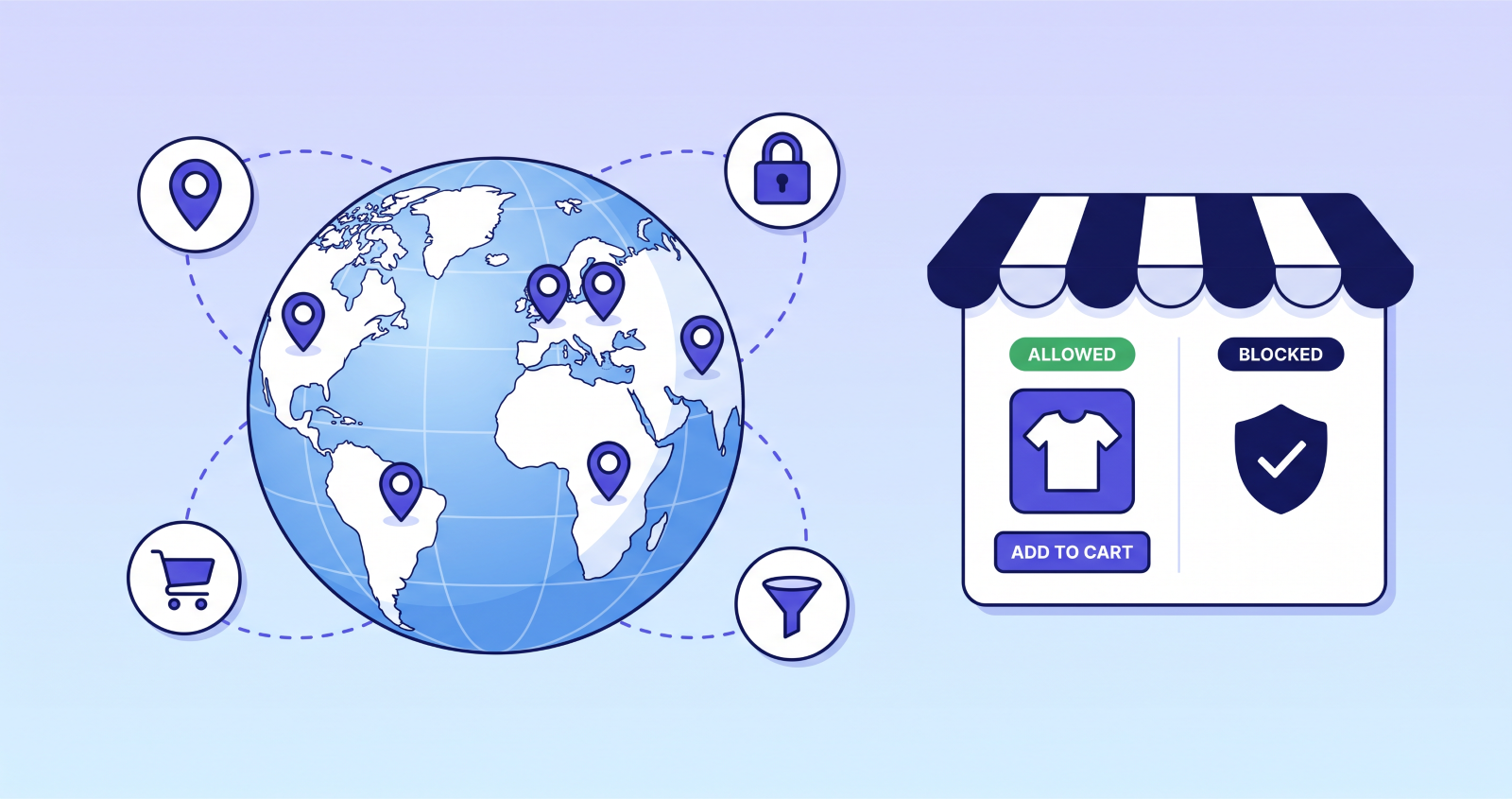
Whatever the reason, the need to block a country in WooCommerce is more common than most store owners expect – and more powerful than a simple “disable shipping zone” fix.
In this guide, you’ll learn exactly how to restrict your WooCommerce store by country: which restriction mode to choose, how to set it up in minutes without writing a single line of code, and how to handle edge cases like per-product rules, payment gateway restrictions, and catalog-only browsing.
Let’s get into it.
Why WooCommerce Doesn’t Block Countries by Default
WooCommerce includes basic shipping zones, which let you define where you will and won’t ship products. But shipping zones only affect the checkout process – they don’t hide products from visitors, block the cart, redirect restricted users, or restrict payment gateways.
In practice, a customer in a blocked shipping zone can still browse your product pages, add items to their cart, and reach the checkout before hitting an error. That’s a poor experience for them and a missed opportunity for you to handle it gracefully.
To truly block a country in WooCommerce – hiding products, blocking purchases, or showing a custom message before a visitor even reaches the cart – you need a dedicated country restriction plugin.
4 Reasons WooCommerce Stores Block Countries
Before choosing a setup, it helps to be clear on why you’re restricting access. The right restriction mode depends on your use case.
Shipping restrictions. The most common reason. If you can’t fulfil orders to a particular country – because of carrier limitations, prohibitive shipping costs, or fulfilment logistics – blocking those visitors from reaching checkout saves everyone time and prevents failed orders.
Legal and regulatory compliance. Certain products are restricted by law in specific countries. Alcohol, supplements, age-restricted items, certain electronics, and medical devices all carry regional rules. Showing a restricted product to a visitor you can’t legally sell to creates liability. Country-level restriction closes that gap.
Licensing agreements. Digital products, software, media, and licensed content are often sold with territorial restrictions baked into the agreement. If your licence only covers North America, you need to enforce that at the store level – not rely on the customer to self-select.
Fraud prevention. Chargebacks and fraudulent orders cluster around certain high-risk regions. Blocking purchases from those countries – while still allowing browsing – is a practical way to reduce payment fraud without shutting out genuine interest entirely.
The 3 Ways to Restrict a Country in WooCommerce
There is no single right way to block a country – the best approach depends on what outcome you want for both your business and your visitor. Most country restriction plugins (including GeoBlock by WindCodex) offer three distinct modes.
Hide mode
In Hide mode, restricted products are completely invisible to visitors from blocked countries. The product page returns a 404 error for direct URL access. You can optionally configure a redirect URL so that instead of a blank 404, restricted visitors are sent to a custom page – a “not available in your region” landing page, a contact form, or a coming-soon page.
This is the right choice when you have strict legal or licensing obligations and cannot risk a restricted user even seeing the product listing.
Catalog Only mode
In Catalog Only mode, visitors from restricted countries can browse your products normally – they can see images, descriptions, and pricing – but the Add to Cart button is disabled and checkout is blocked. You can optionally enable “Allow purchase via direct URL” for cases where a restricted user has been given a private link by your team.
This mode is ideal when you want to let international visitors see your catalog and build awareness, without allowing purchases in regions you’re not yet selling to. It keeps the door open without letting anyone through it uninvited.
Message mode
In Message mode, the product is fully visible but the Add to Cart button is replaced with a custom HTML message of your choosing. For example: “This product is not available in your country. Contact us to enquire about international availability.”
This is the most transparent option and works well when you want to acknowledge the restriction openly and give visitors a clear next step – rather than silently hiding products or cutting off the cart.
Step-by-Step: How to Block a Country in WooCommerce
The following walkthrough uses GeoBlock – a free plugin available on WordPress.org, with a Pro version for advanced rules. It uses WooCommerce’s built-in geolocation engine, requires no API key, and stores no personal visitor data.
Step 1: Install GeoBlock
Go to Plugins → Add New in your WordPress dashboard and search for WindCodex GeoBlock. Click Install Now, then Activate.
Alternatively, download the plugin ZIP from wordpress.org/plugins/windcodex-geoblock, upload it under Plugins → Add New → Upload Plugin, and activate.
Once active, a GeoBlock menu item will appear under WooCommerce in your dashboard.
Step 2: Choose your global restriction mode
Navigate to WooCommerce → GeoBlock → Settings → General.
Under Restriction Mode, select one of the three options:
- Hide – product disappears; direct URL returns 404
- Catalog Only – browsing allowed, cart and checkout blocked
- Message – custom notice replaces the Add to Cart button
This global setting applies as your store-wide default. You’ll be able to override it per product in the next step.
Step 3: Configure your redirect URL (optional but recommended)
If you chose Hide mode, scroll down to the Redirect Visitors field and enter a URL. This is where restricted visitors will be sent instead of hitting a 404. A dedicated “not available in your region” page works well here – it’s a better experience and gives you a place to suggest alternatives or invite enquiries.
GeoBlock includes a safety check that will prevent you from saving your settings if redirection is enabled but the URL field is empty.
Step 4: Customise your restriction message (Message mode)
If you chose Message mode, enter your custom notice in the Restriction Message field. The field accepts HTML, so you can include links, styled text, or contact form shortcodes. Choose where the message appears on the product page – above or below the product summary.
Step 5: Add per-product country rules
For rules that apply to specific products rather than your entire store, open any product in the WooCommerce product editor. You’ll see a GeoBlock Rules metabox in the sidebar.
Set the Rule Type to either Include (only allow listed countries) or Exclude (block listed countries, allow all others). Then use the searchable country selector to choose the countries the rule applies to.
A live rule summary preview shows you exactly what the rule will do before you save – useful for double-checking logic on complex catalogs.
Step 6: Test with Debug Mode
Before going live, verify that geolocation is working correctly. Go to WooCommerce → GeoBlock → Settings → Advanced and enable Debug Mode.
Once enabled, an admin-only toolbar will appear at the bottom of every frontend page showing the detected country, the visitor’s IP address, and the detection method used. This is visible only to logged-in administrators – your customers won’t see it.
To test a specific restriction, temporarily add your own country to a product’s restriction rule and visit that product page. You should see the hide, block, or message behaviour you configured.
For a full configuration walkthrough, see the GeoBlock documentation.
Advanced Use Cases: GeoBlock Pro Features
The free version of GeoBlock handles per-product country rules and the three global restriction modes. If you’re managing a larger catalog or need more granular control, the Pro version adds several powerful capabilities.
Bulk rules by category, tag, or attribute. Instead of setting country rules product by product, you can apply a single rule to an entire product category, a tag, or a product attribute. For large catalogs this saves hours of setup and keeps rules consistent as you add new products.
Payment gateway restrictions. Restrict which payment methods are available based on the visitor’s billing or shipping country. This is particularly useful for reducing fraud – you might disable certain payment gateways for high-risk regions while keeping them active everywhere else.
Variation-level rules. For variable products, you can set different country restrictions per variation. A clothing store selling different sizes might have variation-specific shipping restrictions; a software product might offer different licence tiers by region.
Analytics dashboard. Track which restriction rules are triggering, which countries are being blocked most frequently, and how restriction is affecting your traffic patterns. Rule performance reporting helps you identify where to focus and when rules are outdated.
Pro licences start at $99 for a single site with a 14-day money-back guarantee. See GeoBlock Pro →
Compatibility: What Works with GeoBlock
One of the most common concerns when adding a restriction plugin is whether it will conflict with an existing stack. GeoBlock includes built-in compatibility layers for several popular plugins – no additional configuration needed.
HPOS (High-Performance Order Storage). Fully compatible with WooCommerce’s modern order storage system introduced in WooCommerce 7.1+.
WPML and Polylang. Country restriction rules set on the original-language product automatically apply to all translated copies. You don’t need to duplicate rules for every language – one rule covers them all.
WP Rocket and SiteGround caching. Product pages are automatically excluded from page cache so every visitor gets the correct restricted or unrestricted version based on their country, regardless of caching configuration.
WooCommerce Subscriptions. Both subscription and variable-subscription product types are fully supported, including restriction on renewal and checkout.
WooCommerce Product Bundles. A restriction on a bundle parent blocks the entire bundle from being purchased – you don’t need to restrict individual bundle components separately.
Price Based on Country for WooCommerce. The restriction message takes priority over country-based pricing on restricted products, preventing conflicting UI states.
Frequently Asked Questions
Can I block an entire country from my WooCommerce store, not just specific products?
Yes. GeoBlock’s global restriction mode applies a single rule to your entire store. Set the Restriction Mode to Hide, Catalog Only, or Message under WooCommerce → GeoBlock → Settings, and all products will follow that rule for visitors from restricted countries. You can then override it for specific products using per-product rules.
What do visitors from restricted countries see – just a 404 error?
In Hide mode, direct product URLs return a 404 by default. You can configure a redirect URL so restricted visitors are sent to a custom page instead of a blank error. In Catalog Only and Message modes, the product page is fully visible – only the cart and checkout are blocked, or a custom message replaces the buy button.
Will country blocking slow down my WooCommerce store?
GeoBlock uses WooCommerce’s built-in geolocation engine – no external API calls, no third-party service. Detection results are cached in WooCommerce session storage and WordPress transients with a one-hour TTL, so geolocation only runs once per visitor session. Detection latency is under 15ms.
Can I block a country for some products but allow it for others?
Yes – this is one of GeoBlock’s core features. The global mode sets your store-wide default, and per-product rules override it for individual products. So you can hide a product for visitors from Germany while leaving the rest of your catalog fully available to them.
How does GeoBlock detect which country a visitor is from?
GeoBlock uses the visitor’s IP address to determine their country, via WooCommerce’s built-in geolocation engine. No personal data is stored permanently, and no data is sent to external servers. Detection results are cached per session for performance.
Does country blocking work if I use a page caching plugin?
Yes. GeoBlock automatically excludes product pages from WP Rocket and SiteGround caching so every visitor gets the correct version based on their country, not a cached version intended for a different visitor.
Wrapping Up
Blocking a country in WooCommerce isn’t a one-size-fits-all decision – the right approach depends on whether you need to hide products entirely, allow browsing without purchasing, or show a clear message to restricted visitors.
GeoBlock gives you all three options in a single plugin, with no API key, no external service, and no code required. The free version on WordPress.org covers per-product rules and the three global restriction modes. If you’re managing a larger catalog or need payment gateway control, the Pro version adds bulk rules, variation-level restrictions, and an analytics dashboard.
Install GeoBlock free from WordPress.org →
Control who can buy from your store
Add bulk country rules, variation-level restrictions, payment gateway control and an analytics dashboard, with no API key needed.
14-Day Money-Back Guarantee · HPOS Compatible · Priority Support