
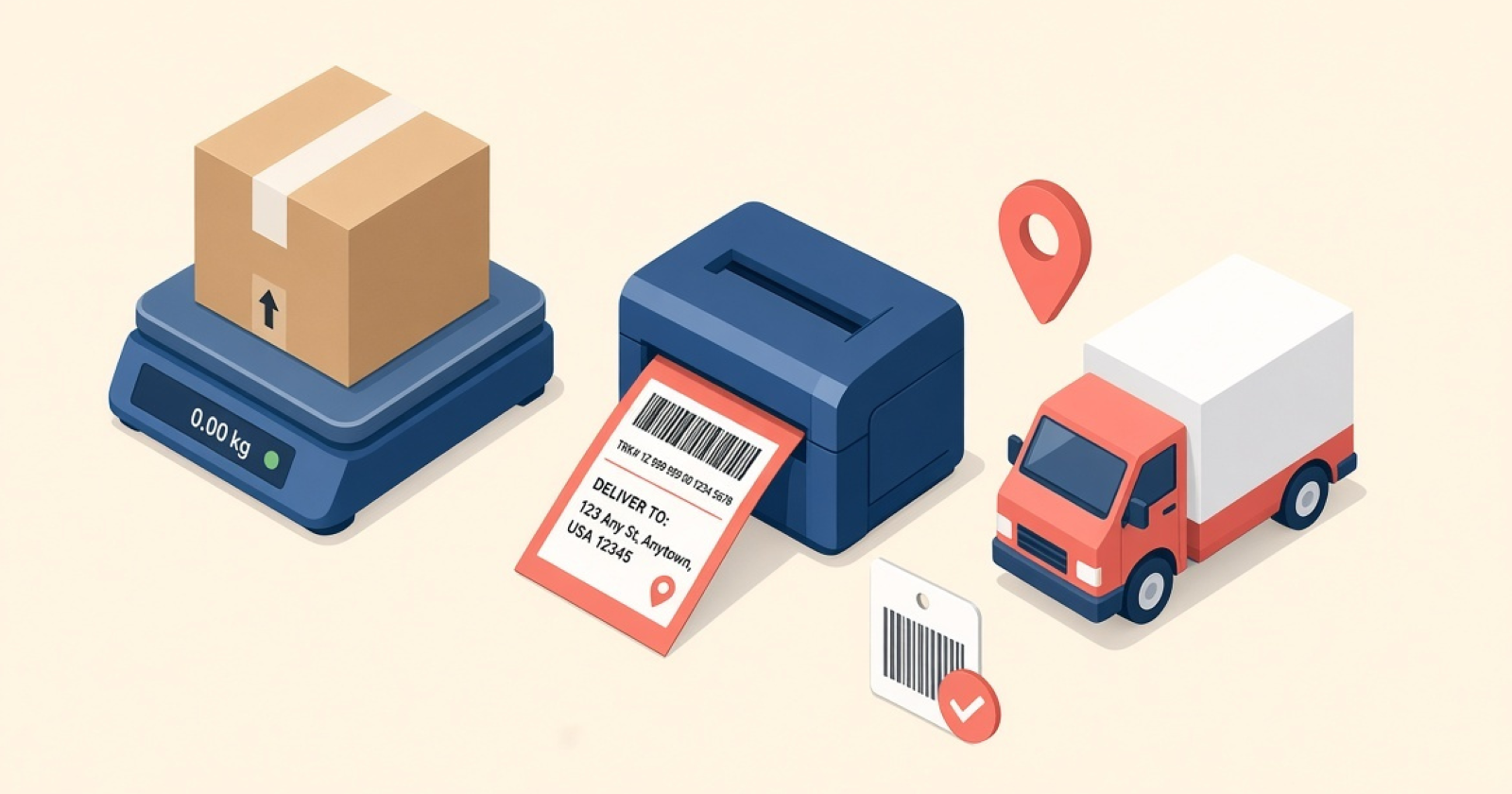
Every order means the same routine: open the carrier website, copy the address, re-enter the weight, then paste the tracking number back into WooCommerce. At fifty orders a week, that is an afternoon gone before a single box ships.
There’s a better way.
ShipLabel — USPS & FedEx Shipping Labels for WooCommerce creates USPS and FedEx labels from the WooCommerce order screen, with live checkout rates, bulk label generation and tracking sync. No separate carrier dashboard, no address copying.
This guide shows how to print shipping labels in WooCommerce step by step, what ShipLabel handles for you, and where its limits are.
Why WooCommerce shipping labels take so long
Most stores run two systems: WooCommerce for orders and a carrier portal for the label. Every order means switching tabs, retyping data WooCommerce already has, and pasting a tracking number back by hand.
That is where mistakes creep in: wrong weights, mistyped addresses, and orders that never get a tracking number, leaving customers guessing where their parcel is.
How to print shipping labels in WooCommerce with ShipLabel
- Connect your carrier accounts
Add your own USPS and/or FedEx developer account once in the ShipLabel settings. FedEx also needs your shipping account number. - Open the order
Every order gets a Generate Label button right on the WooCommerce order screen, so you never leave the page. - Check the package
Weight and dimensions are calculated from your product data and the address is validated for USPS. Adjust them when a shipment needs it. - Generate and print the label
Pick the service, generate the label and print it. Label history stays with the order for later. - Let tracking sync back
Tracking updates are synced to the order, so you stop copying numbers between tabs and customers can follow their parcel. - Go bulk on busy days
Select several orders in the orders list and generate their labels together. The full walkthrough is in how to print multiple shipping labels in WooCommerce.
What a WooCommerce shipping label plugin should cover
| Feature | Benefit |
|---|---|
| Labels on the order screen | No carrier dashboard to log into |
| Live rates at checkout | Customers see real USPS and FedEx rates |
| Auto-calculated packages | No re-entering weight and size |
| Bulk label generation | Fast on high-volume days |
| Tracking sync | Fewer “where is my order?” emails |
| Order Fulfillments support | Labels fit the native WooCommerce fulfilment workflow |
One honest limit: ShipLabel supports USPS and FedEx only, not UPS, DHL or other carriers. You also need your own free USPS developer account and/or FedEx developer account. If you also handle returns, our WooCommerce returns portal guide covers the other side of shipping.
Conclusion
Printing shipping labels should not mean leaving WooCommerce. ShipLabel keeps labels, live rates and tracking in the screen your team already uses for orders.
Building a bigger toolkit? See our roundup of the best WooCommerce plugins for growing stores.
Ready to ship faster from WooCommerce?
Generate USPS and FedEx labels from the order screen, sync tracking and skip the manual dashboard switching.
14-Day Money-Back Guarantee · HPOS Compatible · Native Order Fulfillments · Priority Support