
It’s 6 p.m., a client’s site shows a white screen, and the only clue is a plugin update from this morning. You could paste an error log into an AI chat, but the AI can’t see your files, your database or your hooks, so it guesses.
Giving it full admin access fixes that, and creates a bigger problem.
There’s a safer middle ground: WindCodex Forge — Read-Only AI Diagnostics lets Claude, ChatGPT and other MCP-compatible AI tools inspect your WordPress files, database and hooks without being able to change anything.
This guide explains what read-only diagnostics means, how to use it on a typical plugin conflict, and where the limits are.
Why AI struggles to debug WordPress on its own
WordPress problems rarely live in one place. A slow page can come from a plugin, a database option, a theme template or a hook that runs twice. An AI that only sees what you paste is working from a keyhole.
The usual fix is to hand over access. For most developers and agencies that’s a non-starter: nobody wants to share credentials, or let an AI edit files on a live client site.
What read-only AI diagnostics means
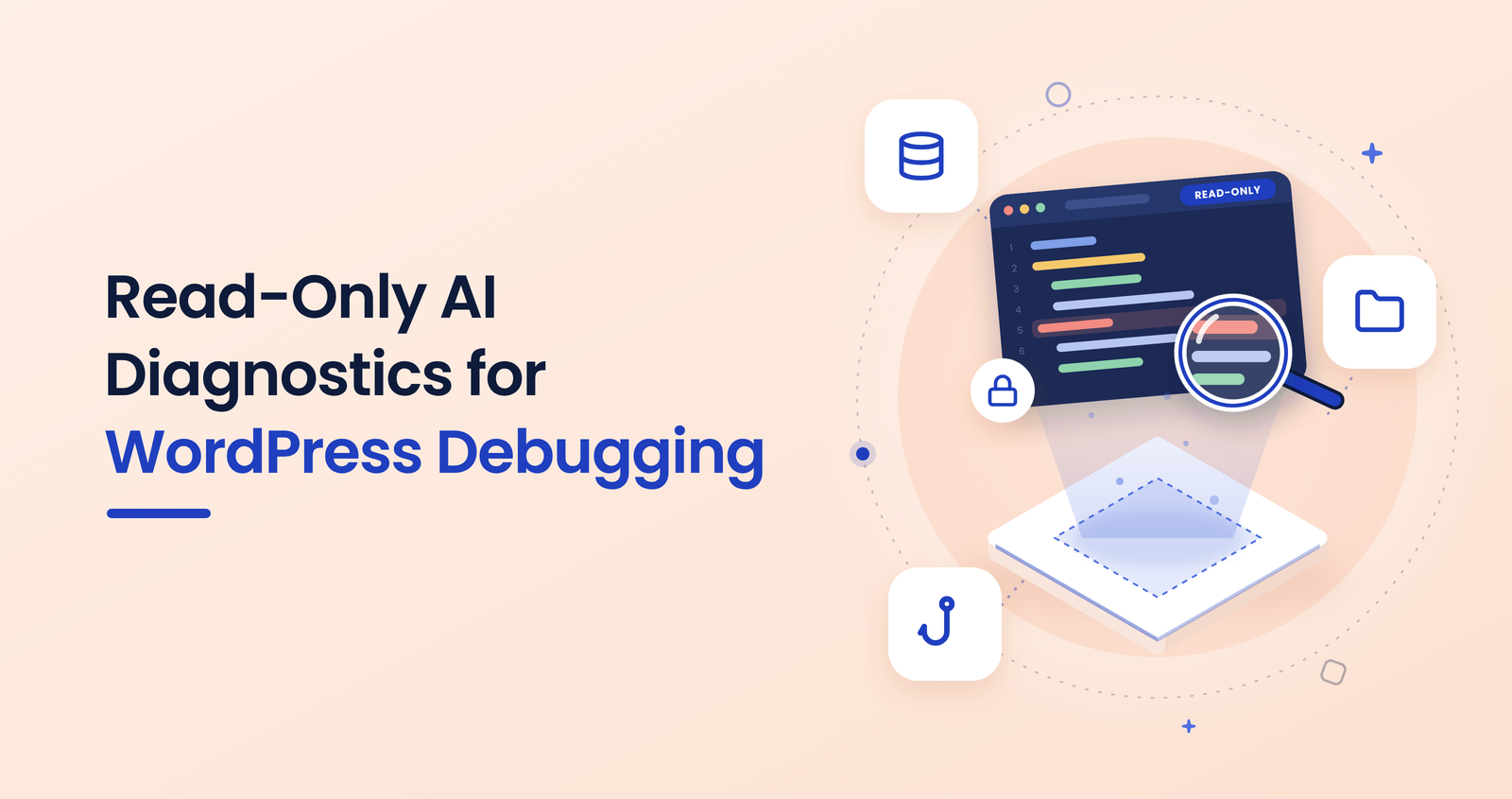
Forge works through MCP, the standard that lets AI tools connect to external systems. It exposes a limited set of inspection tools, and none of them write anything.
| What the AI can look at | Why it matters for debugging |
|---|---|
| Files | Read plugin and theme code to spot the failing function |
| Database | Check options and settings that change behaviour |
| Hooks | See which plugins attach to the same action or filter |
Because nothing can be edited, it’s safe to run on a live site. The worst outcome of a wrong guess is a wrong suggestion, not a broken page.
How to diagnose a plugin conflict with Forge
- Install Forge
Go to Plugins → Add New, search for WindCodex Forge, then install and activate it. - Connect your AI tool
Add the site as an MCP connection in Claude, ChatGPT or another MCP client, following the plugin’s setup instructions. - Describe the symptom
Tell the AI what you see: “The checkout page is blank since this morning’s update.” Be specific about when it started. - Let it inspect
Ask it to look at the recently changed plugin’s files, related options and the hooks involved, and to explain what it finds. - Review the evidence
A good answer names the file, option or hook it relied on. Check that evidence yourself before you act on it. - Fix it yourself
Deactivate the plugin, roll back the update or patch the code on staging. Forge only looks, so the change is always yours.
What Forge cannot do
Forge cannot fix anything by itself, and it doesn’t replace your judgement. The AI can still misread code or point at the wrong cause, which is why step 5 matters. Treat its output as a fast second pair of eyes, not a verdict.
When you do want an AI to act, WindCodex Ops covers the other half: a fixed list of safe actions. Forge looks, Ops acts.
Where this fits in an agency workflow
For agencies, the value is speed without added risk. Diagnosis becomes a conversation instead of an hour of digging through logs, and nobody has to share credentials. It slots into the maintenance phases of a WordPress agency workflow, and it’s one of the practical AI uses we cover in AI for WooCommerce stores in 2026.
Conclusion
AI is a useful debugging partner once it can see the real site. Forge gives it that view without giving it the keys.
Install it on a staging site first, try it on your next plugin conflict, and keep the fixing in your own hands.
Let AI look, not touch
WindCodex Forge gives Claude and ChatGPT safe, read-only access to your WordPress files, database and hooks.
Get WindCodex Forge free on WordPress.org →
Free on WordPress.org · Works with Claude, ChatGPT and other MCP clients